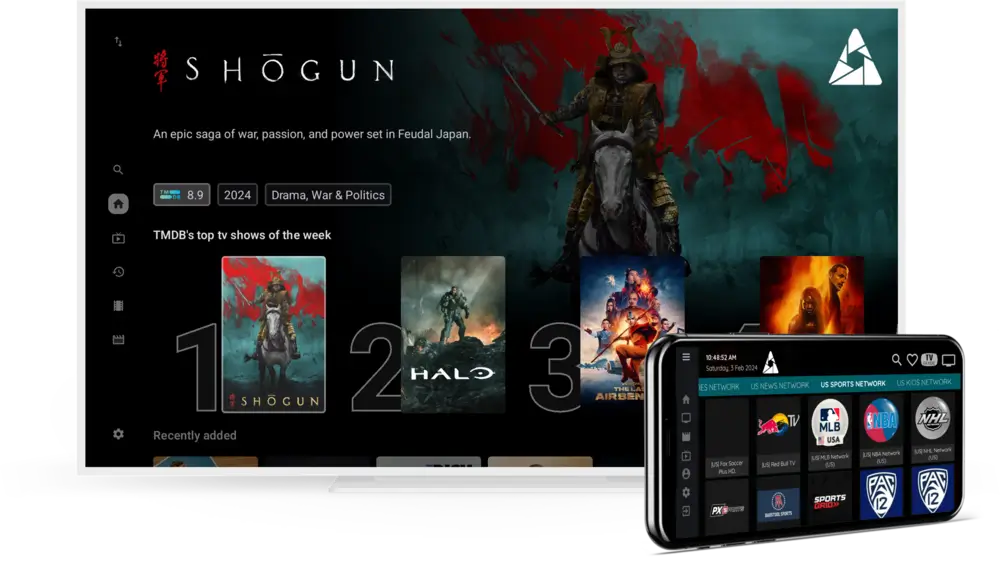
Set up a phone or tablet on the Wi-Fi connection you normally use at home. This gives you a reliable test before adding cellular data, casting, or a second device. Confirm the player’s name and publisher from your activation details.
Interface illustration. Use the publisher and version specified for your own order.
Installation and setup
Set up the player named in your order
Open Google Play on the intended phone or tablet. Compare the listing’s publisher and software requirements, then install the player identified for your order.
Activate using the format requested by the player. If you paste an address from an order email, make sure the entire value stays private and that the app has received the full text.
Play one familiar item. Test rotation, caption readability, audio selection, and returning to the player after briefly switching apps.
Troubleshooting
Find the step that fails
If playback works on Wi-Fi and stalls on mobile data, keep the channel and quality constant while comparing conditions. Review your carrier’s settings and any restrictions attached to your plan.
If casting fails while the phone plays normally, check the target screen, network and player’s casting support. That narrows the problem without reinstalling a working mobile app.
Record the device and software version, player version, exact message and local time. Keep order credentials, payment details and full playlist addresses out of screenshots.
Frequently asked questions
Is an Android phone the same as Android TV?
No. Store availability and input controls can differ. Verify the form factor before installing.
Can I test on cellular data?
Check your plan, carrier and location conditions first. Streaming can use a significant share of a metered allowance.