Start by checking your Apple TV model and whether it offers the App Store. Apple lists Startup Show for compatible Apple TV hardware as an independent playlist player. Use it only if the issuer of your order confirms its compatibility.
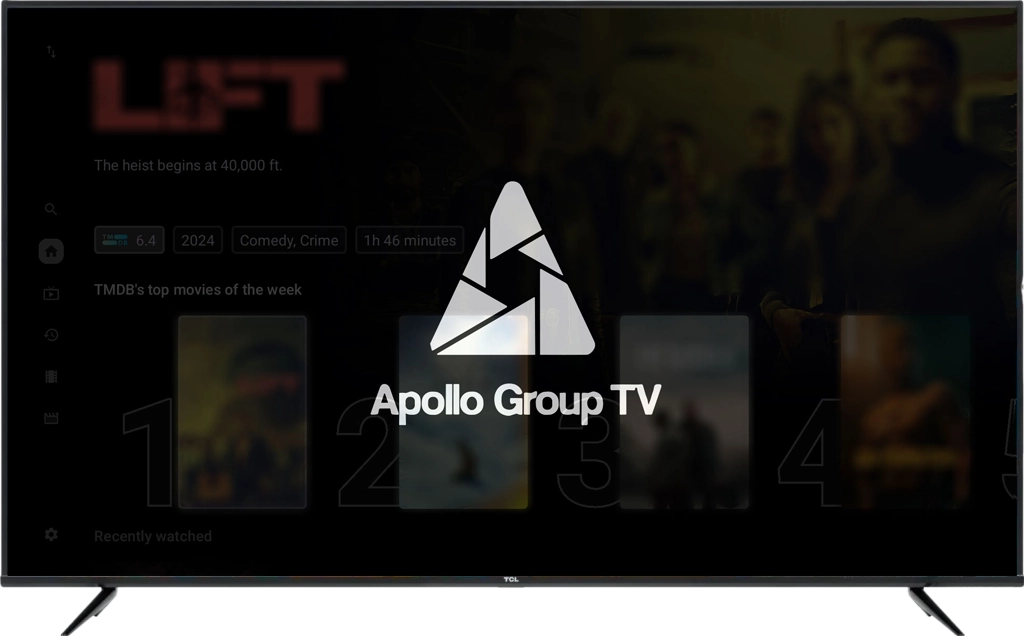
Interface illustration. Use the publisher and version specified for your own order.
Installation and setup
Set up the player named in your order
Open the App Store on the Apple TV itself. Compare the app name, publisher and tvOS requirements against the instructions for your order.
Install the confirmed app and follow the supported input method. If the player offers a pairing or companion step, use the method described for that app and protect your private playlist address.
Test playback using the Siri Remote. Check audio, captions, full-screen controls and the program guide. Test AirPlay separately if the player and your setup support it.
Troubleshooting
Find the step that fails
If the TV app is absent but your iPhone shows a result, verify store availability on the Apple TV. The phone result alone does not establish a supported TV installation.
If AirPlay works with a familiar app but not your player, check the player’s documented behavior. If neither works, compare the network and receiving-device settings before changing the subscription setup.
Record the device and software version, player version, exact message and local time. Keep order credentials, payment details and full playlist addresses out of screenshots.
Frequently asked questions
Is Startup Show the Apollo Group TV subscription?
It is listed by Apple as an independent playlist player. The content and account access are separate.
Can an older Apple TV use the same install process?
Check for the App Store and verify the current minimum tvOS version on the player’s own listing.