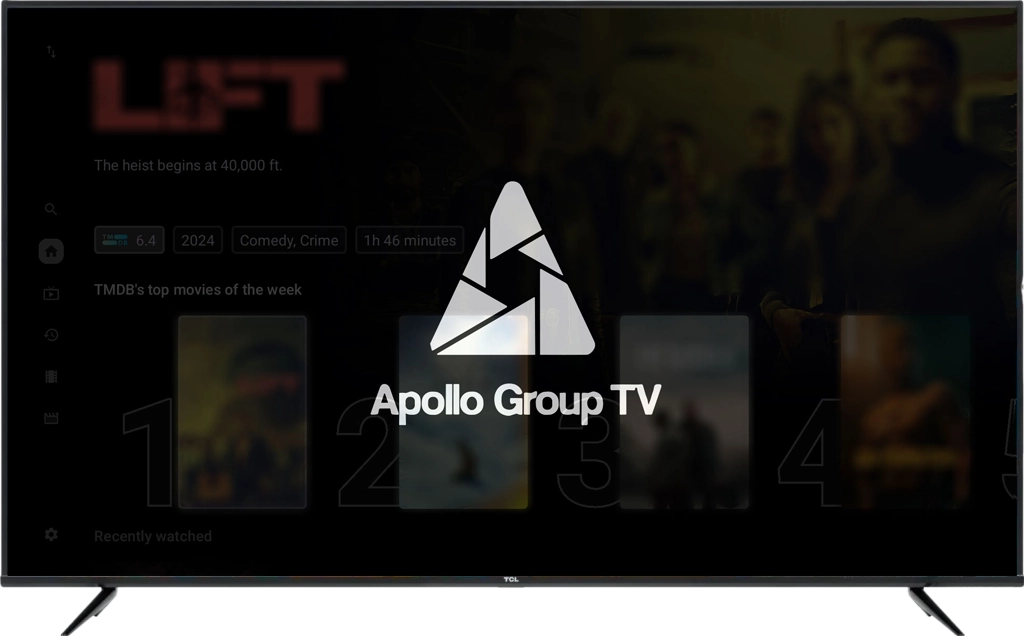
Start from the television or box that will run the player. An Android TV app listing is not the same as a generic Android phone listing. A phone app can have touch controls that are not practical with a TV remote.
Interface illustration. Use the publisher and version specified for your own order.
Installation and setup
Set up the player named in your order
Record the TV or box model and software version. On Android TV, look under Apps for Google Play. On Google TV, use Apps or search on the home screen.
Verify the player and publisher from the order instructions, then check whether the store lists it for the actual television. If available, select Install and launch it from the device’s app row.
Add access using the format your instructions specify. Test channel changes, Back, pause and subtitles using the remote rather than a phone keyboard.
Troubleshooting
Find the step that fails
If your phone shows the app but your TV does not, compare the device type, software and store region. Verify the TV version with the publisher or seller.
If every schedule is shifted by a similar interval, check the TV clock and time zone before touching any guide offset. If only one station is blank, compare that station’s feed with one that works.
Record the device and software version, player version, exact message and local time. Keep order credentials, payment details and full playlist addresses out of screenshots.
Frequently asked questions
How are Android TV and Google TV different for setup?
The entry point in the menus can differ. In both cases, verify the listing and complete install from the intended TV device.
Does Android TV support mean the app will work on a generic box?
Check the box’s actual operating system, store presence and supported player before assuming compatibility.