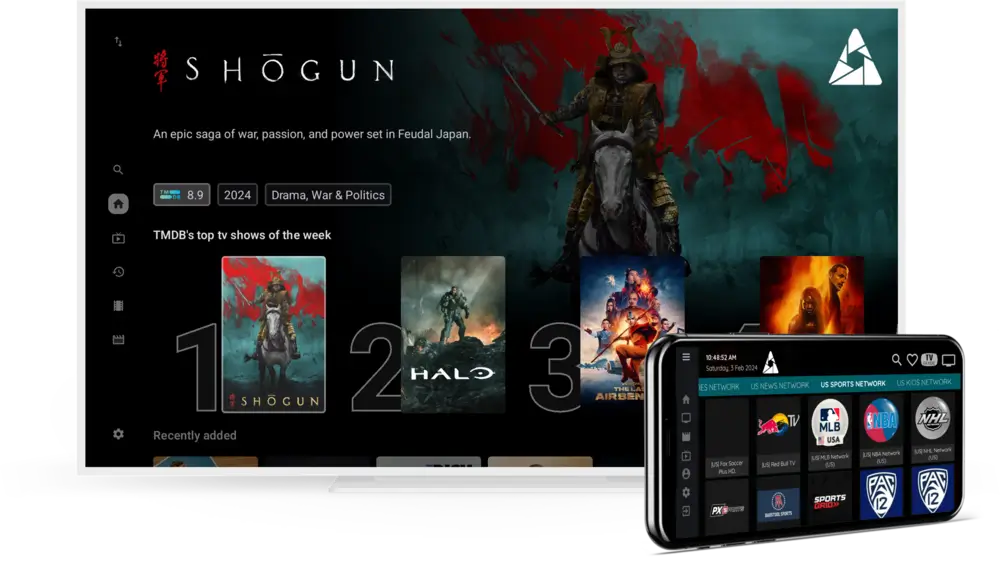
Start by reading the activation instructions for your own order. Apollo Group TV is the service name readers search for; the software that plays an order can be a separate application. An app store search can show products with similar names, so compare both the app name and its publisher before installing.
Interface illustration. Use the publisher and version specified for your own order.
Installation and setup
Set up the player named in your order
Find the app identity in your order confirmation and match it to the exact device. If the instructions name a television version, verify it on that television rather than a phone search result.
Check whether the app expects an email and password, playlist address, or a pairing step. Select the method shown in your order. Keep any address containing access details private.
After installation, open the app, let its catalog finish loading, then test one live channel and one on-demand title if your plan includes both.
Troubleshooting
Find the step that fails
An app can load menus without activating service. If you can navigate but the content list is empty, check that you selected the right connection format and that the order is active.
If the app store shows multiple near-identical names, contact the issuer of your order with your device model and the suggested publisher. Do not enter credentials in a look-alike app while you wait.
Record the device and software version, player version, exact message and local time. Keep order credentials, payment details and full playlist addresses out of screenshots.
Frequently asked questions
Is there one official app for every device?
Use the player identified in the directions for your specific order. A store listing or a similarly named site does not establish an app relationship with apollogroup.io.
Can the app supply channels on its own?
A separate playlist player usually requires an authorized content source. Installing it does not create a subscription.