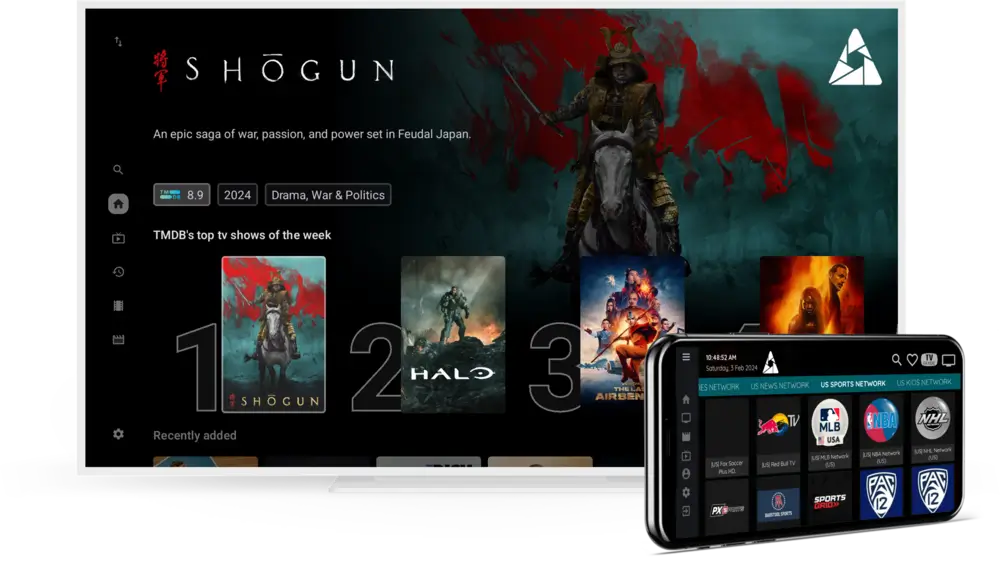
Discover compatible apps and devices for Apollo Group TV. Explore setup guides, installation instructions, and streaming options.
Open the instructions for the order you intend to use. Record the exact player name, publisher, supported platform and input method. This makes it easier to distinguish a familiar-looking icon from the correct listing. If any one of those details is missing, ask the issuer of the order before you enter credentials. A separate media player may be required even when you already have an account with the service.
Treat an activation address as private. An M3U link may contain credentials or a token inside the address itself, even when it does not look like a password. Store it separately from device notes or screenshots you share. If a support message needs a screenshot, crop the input field out or redact it before sending. You can usually describe the input type without including the actual value.
A television can simply display the video from a connected Fire TV Stick, Android TV box or Apple TV. In that setup the box or stick determines the operating system, the store and the controls that run the player. If you are using the television’s built-in software, the TV model and store region matter. Look at the system information screen on the correct device before comparing tutorials.
For phones and tablets, record the exact model and operating system, then check the listing on the actual device you want to use. The same app name can cover several versions or have different eligibility on mobile and TV. A store result on your laptop or phone is a useful lead. Test whether the intended screen offers the listing for its own software and region.
Use the FireStick, Android TV or Apple TV guide if a separate streaming device runs the player. Choose the Samsung or LG page to check a built-in television platform. Those brand-specific pages explain how to verify native support and assess a compatible external option. Choose Android mobile or iPhone and iPad when you watch on a phone or tablet. Each route starts with a device check and ends with a playback test.
If you are comparing several screens, choose your primary screen first. Resolve access before adding the second device. A working setup gives you a comparison when another device fails at sign-in, loads no channels or displays the guide at the wrong time. Record which network you used so the comparison is meaningful.
Complete only the activation fields requested by the player. A store login allows you to install the software. Access to paid programming depends on the subscription and activation information issued for your order. Wait for synchronization before testing a live feed. Choose one familiar program that you can find on more than one device and use it to check video and audio.
Where your access includes on-demand viewing, try pause and resume on a known title and check the audio and subtitle controls. Use the remote or touchscreen in the same way you expect to watch. If you need a specific accessibility feature, confirm it on a real program. It is useful to verify the whole viewing experience before treating setup as complete.
A missing listing, a rejected activation and a frozen picture happen at different stages. If the listing is missing, check store region and model. If activation fails, verify the input format and order status. If menus work and only one feed stalls, try a second channel first. Change one variable each time so you can tell which result follows the stream, device or network.
Keep a short troubleshooting note with the device model, app version, time zone and exact error. A description such as “two live channels played, but this one froze on both devices” is more actionable than a report that says the whole app is down. If you contact support, share the order reference privately and keep credentials out of the report.
If there is no confirmed native player for the living-room television, check whether you already own a compatible HDMI device. Confirm software compatibility, an available input, suitable power and the network quality at the television. A sharper display does not resolve an unsupported app. If the proposed setup requires new hardware, include that in your comparison before choosing a plan.
After connecting an external device, select its input and test the controls with the remote that others will use. Confirm that you can return to the normal TV home screen and then back to playback. If sound disappears, compare the television speakers to the expected soundbar or receiver. A repeatable test helps distinguish the installation from an input or audio-output problem.
List the screens people actually use and how many may be active at the same time. App installs and concurrent streams are different concepts. Match your household’s peak viewing time to the terms for the selected offer. Check any model, location and network conditions if you intend to move between rooms or travel. Test each required device separately before relying on simultaneous playback.
Pick two or three items that matter enough to influence the purchase. You might need a regional news feed, a particular match or a series with captions in a certain language. Check the exact feed, date or episode alongside the screen. A confirmed player is useful only if the access and content also match what you expect to watch.
Use the player named and verified for your specific order and screen.
Check the exact model and store region, then ask the issuer of the order to confirm the supported route.