This Apollo Group TV setup guide takes you from activation instructions to a repeatable first-playback check. Follow the steps for the device and player named in your order. Keep your login information private and use the app supplied or identified in those instructions.
Before connecting a screen
Collect the right order details
Find the order receipt and activation instructions. Note the player name and publisher, and identify whether the player asks for a username and password, playlist address, portal configuration or pairing code. Keep the original instructions available until the first setup works, including the order reference in case you need help.
Check the device operating system, available storage and internet connection. If you connect a TV stick, select its HDMI input and confirm the remote can navigate Settings before you install anything. If you share the screen, agree on which person will manage account details and where privately to store them.
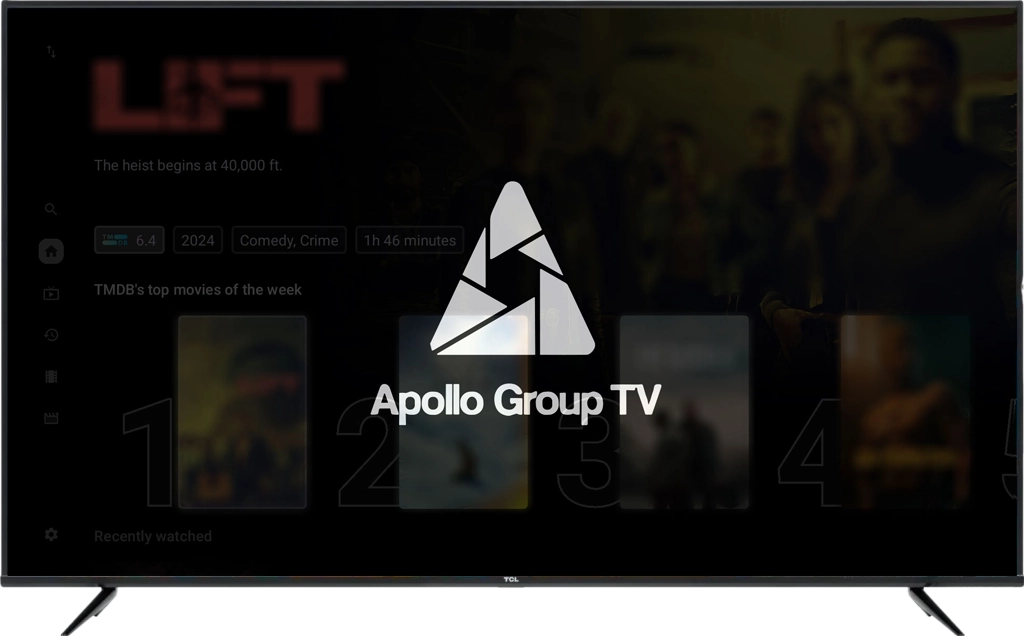
Set up Fire TV or Android TV
Install from a verified source
Apply any device updates, then search the device store for the player specified for your order. Match the publisher and exact name rather than choosing an app by its icon. Confirm the description says it supports the device type you are using. Use only the verified installation method identified for your device.
After installing, open the app once and check that it reaches its normal sign-in or configuration screen. Use the remote to select fields and correct typing errors before sending. If you cannot find the player, check the operating system, app-store region and exact model with the provider before trying a different installation procedure.
Set up a smart TV
Check the television’s own app store
On Samsung, LG or another television with a built-in app store, search from the television itself. Use the specific app name from your instructions. Store catalogs vary by software and region. If the app is missing, confirm support for your model before buying an accessory or changing settings you may need for other apps.
If you use a compatible external stick, treat it as a separate device. Install the player from that device’s app store and use its remote for setup. Check that you can switch back to the television home screen easily, and note the correct HDMI input for anyone else who uses the television.
Sign in and load the lineup
Match credentials to the fields
Open the player and select the activation method from your instructions. Enter each item in its own field. Confirm that a copied value has no leading or trailing space, especially if you copied it from a message. The store account you use to manage purchases may be separate from the login your player expects.
Wait for initial synchronization. If you land on an empty screen, clear any search or favorites filter and refresh after the app has finished loading. Confirm the device’s time zone and open the electronic program guide. Check two known programs on a familiar channel before changing any time offset.
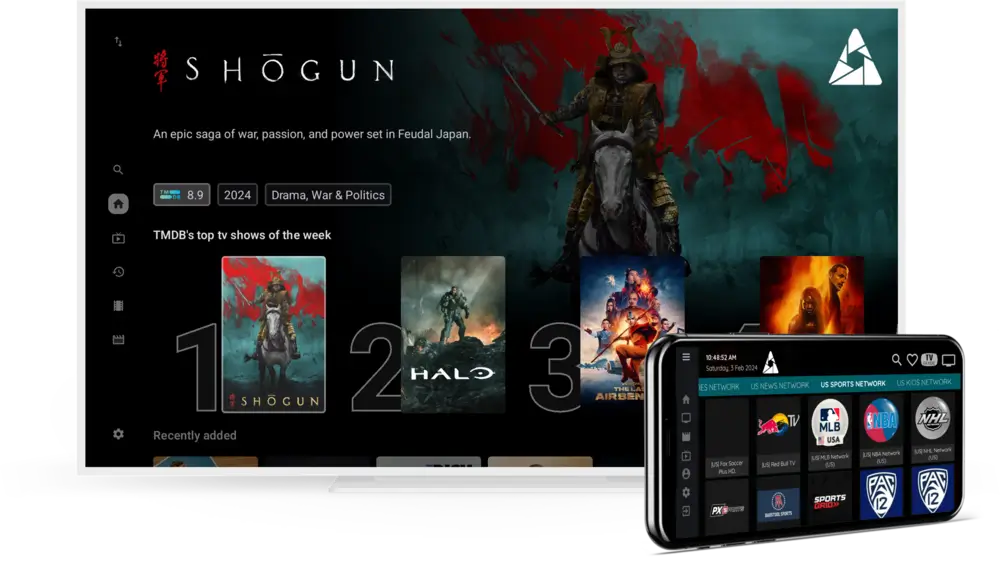
Complete the first-playback checklist
Test more than the picture
Play a live channel and an on-demand title if both are included. For live TV, switch channels and then return to the first one. For on-demand, try pause and resume. Check the intended audio track, subtitle size and remote navigation at the distance you normally sit from the television.
If you plan to use another screen, configure it separately and confirm the connection allowance before testing simultaneous playback. Write down the devices and whether the test was on Wi-Fi or Ethernet. If only one title fails, save the name and event time instead of changing the setup across every device.
Pick up after a failed setup
Identify the first step that failed
Write down whether you could find the app, open it, sign in, load the channel list and play a program. The earliest point of failure tells you which checks are most useful. A missing store listing calls for a device compatibility check. A successful login with no listings calls for a guide or source check.
If you need help, include the order reference, device model, app version, exact error and the normal setup step that failed. If you include a screenshot, hide personal information, passwords and full playlist addresses. Keep the original device settings on hand so you can describe what changed during testing.
Run a clean setup on a second screen
Keep your first working setup available as a comparison while you install the player on the next device. Write down the point at which the second setup behaves differently. A missing app, rejected login and failed channel are three separate problems. Do not reset the working device as part of testing one that has never completed activation.
Compare the app names and publishers again on both store listings. Check whether the working device uses the same connection method and software generation. After verifying both independently, test parallel viewing only if your plan supports it. Start the same normal viewing routine you expect at home, then confirm both screens stay responsive when navigating the guide or changing channels.
If someone else in your household will use the device, have them start a show from the home screen independently. Record how to reopen the player and where to change captions. Keep the steps simple enough to follow without sharing activation details.
Frequently asked questions
Do I sign in with my billing account?
Use the credentials requested by the player and supplied in your activation instructions. An account that opens the store or billing portal may be separate.
What if I cannot find the exact app?
Record your model, operating system and app-store region. Confirm support for that combination before installing a similarly named app or changing regional settings.
Should I install the player on every screen at once?
Start with the screen you use most. Test one live and one on-demand item if included, then add other devices and respect the plan’s simultaneous connection limits.
Why is the channel guide time wrong after setup?
Check the date, time zone and automatic time on the device, then refresh the guide. Compare the listings against a known local program before applying a guide offset.