Use this Apollo Group TV device compatibility guide before choosing a player or buying new hardware. Check the screen, app store, software version and playback controls together. Compatibility is useful only if the setup works for the people who will actually use it.
Identify the device running the app
Read the model information
A television and the streaming stick connected to it are separate devices. If the stick runs the app, its operating system and store determine compatibility. Open About or System Information on the device that runs the player and note the exact model code, operating system version and available storage. A television brand name alone cannot identify its app catalog.
Write down which HDMI input you use and which remote controls the player. This lets another person repeat the test without guessing whether the television or external box is in charge. On a second screen, do the same inventory from scratch. Two TVs from the same manufacturer can have different software generations.
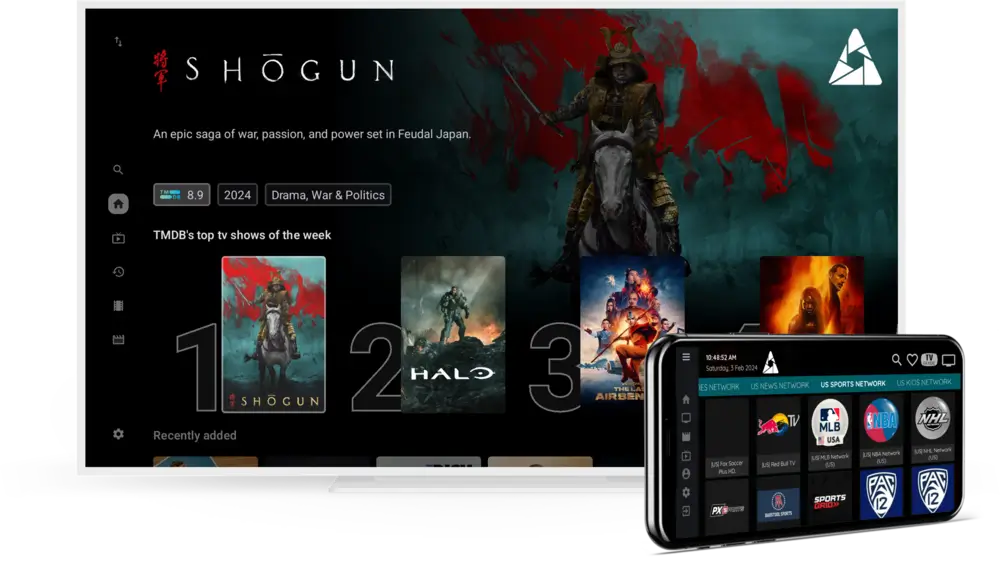
Fire TV and Google TV
Check the intended store
Search for the exact name and publisher specified in your subscription instructions on the device itself. A search result on a phone or desktop does not establish that the TV model and store region offer the app. Read the listing for minimum software, available languages and whether it is designed for remote navigation.
On a stick, leave space for app updates and check that you can reach standard controls with the remote. Test the Back button from playback, the channel menu and the app exit screen. If the controls are awkward for anyone in the household, address that before relying on the device as your main television.
Samsung, LG and other Smart TVs
Use the model year and region
Open the television’s own store and check the required player by name and publisher. Samsung and LG models use stores different from Google TV and Fire TV, and app availability can change with model, software or region. Confirm both the model code and operating system when asking whether a set is supported.
If the required player is unavailable, check whether a compatible HDMI device would work with the television. Check that you have a usable HDMI input, suitable power and stable internet in that room before buying anything. Once connected, switch inputs and repeat the app store check on the new device itself.
Phones, tablets and computers
Test where you will watch
Look up the exact player in the phone or tablet store and check its minimum software version. Test playback in portrait and landscape if movement between them matters, and check captions, audio tracks and screen locking. If you intend to cast, verify casting separately on the actual combination of sender, receiver and network.
For a computer, confirm whether your instructions specify a desktop app or a supported browser. Check playback with the audio output you intend to use and try keyboard navigation for play, pause and full screen. A desktop browser or app that plays correctly on one operating system may not be available on another.
Make a realistic playback test
Use the room and connection you need
Start with one live program and one on-demand title, where available. Play long enough to let picture quality stabilize, try the guide, then return to the original channel. Confirm you can read captions from the normal seating position and switch to the audio language you need. If using a soundbar, verify audio through the television speaker first, then through the normal output.
Repeat the test in the room you plan to watch from. A phone next to the router and a television behind a wall can have different Wi-Fi performance. Keep track of which connection and device you tested. If a stream stalls only in one room, check the connection there before assuming the television is incompatible.
Document who can watch and when
Separate access from compatibility
Build a simple list with one row per screen, recording its model, the player installed, the room, and the results of your basic playback checks. Then list the maximum number of people who might watch simultaneously at home. The device list tells you which hardware works, while the plan terms tell you how many streams you can use at one time.
Keep the record with your setup instructions. When an app or device updates, you can repeat the same viewing checks and identify what changed. If you need support, send the model and software versions and describe the failed step. Keep login or activation codes out of the device list and any screenshot you share.
Decide when extra hardware is worthwhile
If a player is unavailable on a built-in television system, first establish whether a supported device already exists in your home. A spare streaming stick may solve the app-store problem without a new purchase. Check HDMI availability, power and Wi-Fi where the television sits. Keep the TV’s own picture and audio controls in mind because they still affect what you see and hear.
If you plan to carry a stick between rooms, confirm the second set has compatible inputs and that it can reach the network reliably. Pause and resume an on-demand program after switching rooms. Make sure a shared remote can get back to the correct input when the television has been used for another source.
Frequently asked questions
Can I use any smart TV?
Check the exact model, software version and store region against the player specified in your activation instructions. The television brand and screen size alone do not establish support.
Does a compatible phone mean casting will work?
Casting depends on the player, the receiving device and how they connect. Test the exact device pair and network before relying on it.
Why does my app work on one television but not the other?
The two sets may run different operating systems, have different app versions or use weaker Wi-Fi in one room. Record the model and test the same program on both devices.
What should I verify before buying an HDMI stick?
Check player availability on the stick, available ports and power, network quality in the room, remote usability, and accessibility options you need.