Apollo Group TV Installation Guide
Set up a compatible player on Fire TV, Android TV, smartphones, Smart TVs or Apple devices. Use the instructions for your own order and test playback before adding another screen.
- Check the deviceFind its model, software and app store.
- Install the confirmed playerVerify its name and publisher.
- Activate and testConfirm access and play a familiar title.
What is Apollo Group TV?
Apollo Group TV is a name used for streaming offers that can include live television and on-demand programs. The subscription supplies access, while the player is the app that opens that access on a compatible device. A player installation alone does not activate an order or add channels. Use the activation instructions associated with the seller you bought from, even if another site uses the same service name.
This Apollo Group TV installation guide explains the device setup and the checks you can perform without exposing your credentials. Start on the screen you use most, then repeat the process for any additional devices your plan permits. Visit the Apollo Group TV homepage for an overview or review the streaming features before comparing setups.
Apollo Group TV installation requirements
- Your exact device model and operating-system version.
- A working internet connection on the device itself and enough free space for the player.
- An active order and the player name, publisher and activation method from your order instructions.
- Access to the device’s app store, if your setup uses an app-store installation.
Check the screen and the app separately
The model that matters is the one running the app. If a Fire TV Stick is plugged into a television, check the stick rather than the television brand. If you plan to install directly on a Smart TV, check the television model, store region and software version instead. Read the Apollo Group TV device compatibility guide before buying hardware.
Work on a connection you can test with another streaming app. If your player is unavailable, record the device details and ask the seller for the supported method before changing security settings. Keep login details and full playlist addresses private.
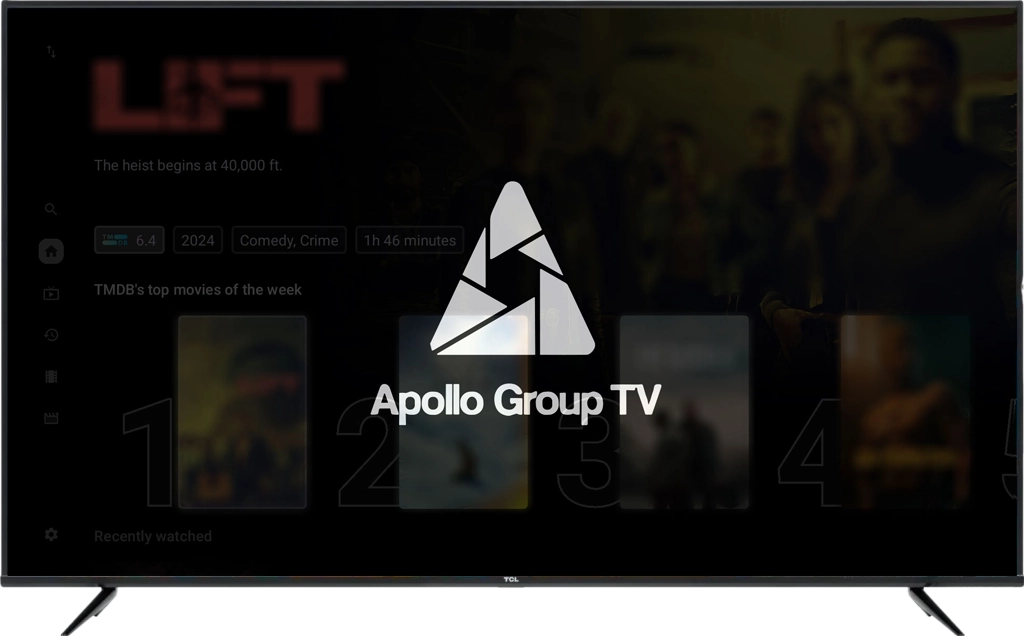
How to install Apollo Group TV on Amazon FireStick
- Identify the Fire TV model. Switch the TV to the stick’s HDMI input. In Fire TV settings, open the device information screen and note the model and software version. Update the system if needed.
- Find the player specified for your order. On the Fire TV home screen, use Find or Search to look up the exact player named in your activation instructions. If it appears in the Amazon Appstore, check the publisher and follow the install prompt.
- Confirm alternate installation instructions if needed. If the named player is absent, ask the issuer of your order to confirm Fire TV support and its current installation method. ApolloGroup.TV’s published support material documents a Downloader workflow for certain Fire TV models. That is provider-specific and does not verify a download for an apollogroup.io order.
- Open the player and test playback. Enter the activation details requested by the app. Let the lineup finish loading, then open one live channel. Test the remote’s Back button, audio and captions before setting up a second screen.
Use the app or installation method confirmed for your own device and order. Avoid random APK mirrors and unverified Downloader codes. If you need help, report the model and the first step that did not work.
How to set up Apollo Group TV on Android TV
- On Android TV, open Apps and locate Google Play. On Google TV, use the Apps tab or home-screen search.
- Search for the exact player and publisher in your activation instructions. Check that the listing supports the television or box you’re using. If it is available, select Install and open it when installation finishes.
- Select the matching activation option. Enter only the credentials or playlist source requested for that option. After synchronization, play a channel and check the program guide clock.
If the app is available on your phone but missing on the television, verify the TV model and region before assuming the phone version will work with the remote. If playback freezes, compare another title on the same device before changing player or network settings.
Apollo Group TV on Android smartphones
Open Google Play on the phone, search for the player named in your instructions and check the publisher on the listing. Install it on the actual device you plan to use. Launch it, follow your activation instructions and wait for the lineup to load. Test one item over your normal Wi-Fi connection before trying mobile data, where allowed by your plan and carrier.
After playback begins, rotate the screen, try pause and resume where available, and check the audio or caption controls if you use them. If you intend to cast to a television, test the sender, receiving device and network together. Working playback on the phone does not by itself establish that casting works.
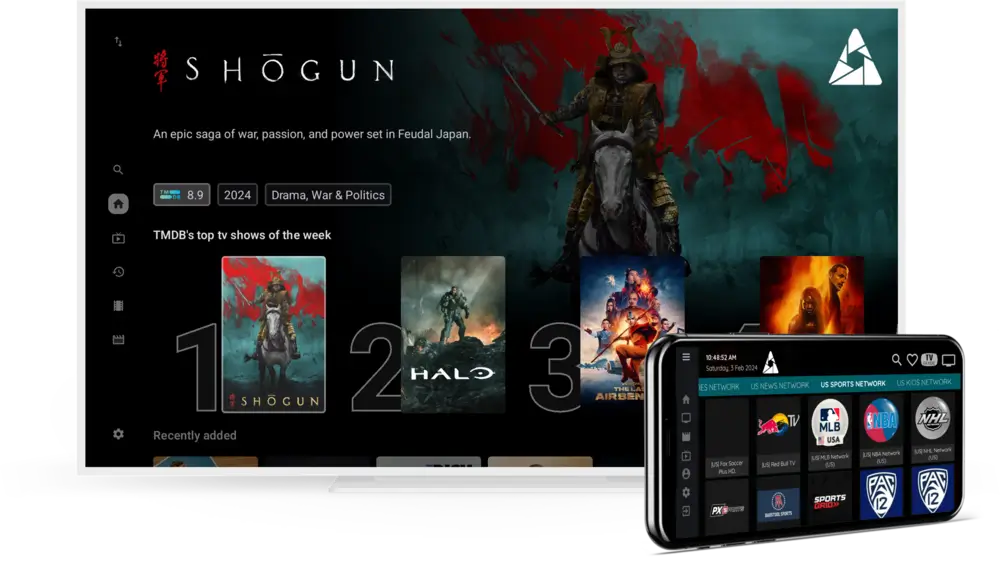
Apollo Group TV on Smart TVs
Check the TV’s own app store
Samsung, LG and Google TV sets may use different operating systems and app catalogs. Open the store from the television menu and search using the exact player name from your order. Confirm your model, software and region with the seller if the player is missing. ApolloGroup.TV’s own support index lists Samsung and LG TV as unsupported for its documented setup, so a generic Smart TV label is not evidence of a compatible native app.
Use a compatible HDMI device when necessary
If your television cannot run the required player directly, confirm that your order supports an external device you already own or plan to buy. Install the player on that device, set the television to the corresponding HDMI input and use the external device’s remote. Check both the player menu and audio output before calling setup complete.
Apple device compatibility
Check iPhone, iPad and Apple TV individually. Once your activation instructions name an iOS or tvOS player, open the App Store on the intended device and verify the publisher and operating-system requirements. Apple’s App Store lists Startup Show as a third-party playlist player for iPhone, iPad and Apple TV. Use it only if the seller for your order confirms that it is compatible with the access it supplied.
When setup requires a playlist, enter the private address supplied for that order in the matching player field. Test the video and guide on the device itself. Treat AirPlay as a separate compatibility check if you expect to use it, and verify it with the receiving screen before relying on it.
How to configure Apollo Group TV after installation
- Open the player and select the activation method stated in your instructions. Enter individual credentials in their matching fields, or use the full private playlist address if the player specifically requests one.
- Remove accidental spaces if a copied value is rejected. Check that you’re using the player credentials attached to your order rather than a saved password from an unrelated billing account.
- Let the initial sync finish, then verify the device date and time zone. Test live playback and an on-demand title if both are included. Check the guide, audio and captions on your intended screen.
Write down the model, app version and a working test title. This gives you a baseline when you add another device or troubleshoot after an update. Verify the plan’s concurrent connection limit before testing multiple streams at once.
Common installation problems and solutions
- App unavailable or install rejected
- Confirm the model, software, storage and app-store region. If the exact listing never appears, verify support with the seller rather than selecting the closest result.
- Login rejected
- Confirm the activation type, order status and requested credentials. Check letter case and trailing spaces. Record the exact message before resetting anything.
- Empty channel list or missing listings
- Allow synchronization to finish, clear favorites or category filters and refresh the list. If live playback works while schedules are blank, inspect the guide separately.
- Buffering or black screen
- Try a second title, then repeat the first test on another compatible device. Keep channel and quality constant when comparing Wi-Fi and Ethernet, where available.
See the Apollo Group TV troubleshooting guide for more checks, including missing audio and consistently shifted guide times.
Frequently asked questions
Does installing a player start my subscription?
Installation prepares the device. Subscription access depends on the order and activation details issued to you.
Which Apollo TV app should I install?
Use the app and publisher named in the activation instructions for your order. Compatibility depends on the model, store and activation format.
Can I use the same setup on every television?
Each television or attached streaming device may use a different store and operating system. Verify each device separately and review the plan’s simultaneous connection limits.
Do I need to reinstall when a single channel stops?
Try a different channel first, then repeat the original test on another compatible screen. A one-channel problem can be separate from the installation.
See the homepage FAQ for plan and account questions.
How to contact Apollo Group TV support
Use the support details on your order confirmation for issues with activation, subscription access or a specific player. For help finding the right route on apollogroup.io, see Contact Us. Include the device model, software and player version, your exact error, the local time it appeared, and one step you already tried. If your report includes a screenshot, hide activation codes, passwords, payment information and complete playlist addresses.
If you haven’t subscribed, review subscription plans and pricing and check the device and renewal conditions before proceeding. Read the Privacy Policy and Terms and Conditions for information about the website and purchase terms.